Tag: Digital Art Equipment

  • Drawing Tablet With or Without a Screen: Which Is Better?

    Drawing Tablet With or Without a Screen: Which Is Better?

    Drawing Tablet with Screen vs. Screenless: Which Should You Choose?


    Buying your first drawing tablet can be confusing. With so many models, features, and price ranges available, it can be difficult to know which option is actually worth your money.

    One of the biggest decisions you’ll face is whether to buy a screen tablet, which lets you draw directly on a display, or a screenless tablet, where you draw on a separate surface while looking at your computer monitor.

    Both options are popular among digital artists, illustrators, and 3D creators. However, they offer very different drawing experiences.

    So, does having a screen actually make a tablet better? Or can a more affordable screenless model do the job just as well?

    What Is a Screen Tablet?


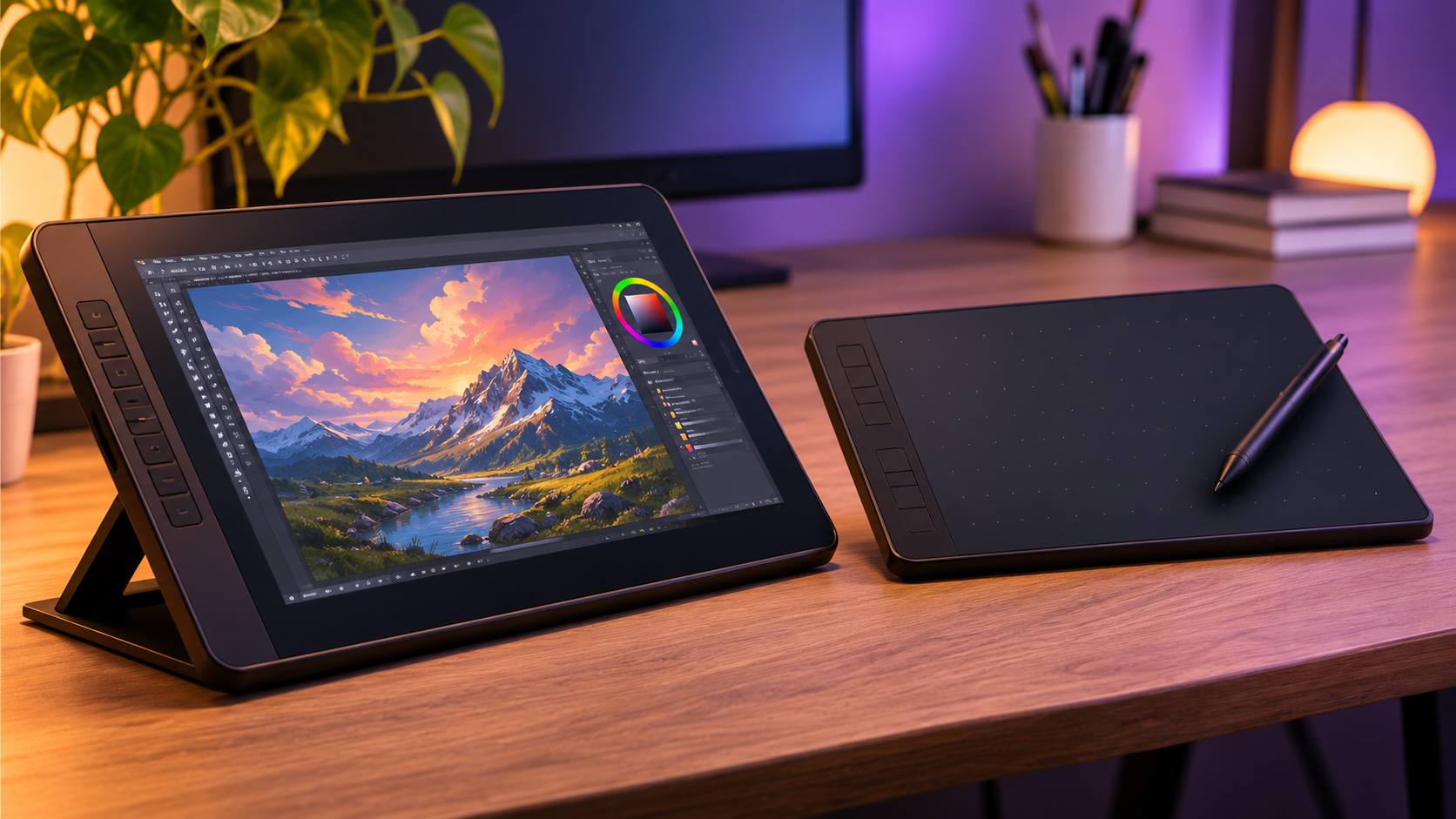
    A screen tablet, also known as a pen display, has a built-in screen that allows you to draw directly onto your artwork using a stylus.

    Instead of looking at a separate computer monitor, you see your brushstrokes appear directly beneath your pen. This makes the experience feel similar to drawing on paper.

    Screen tablets are particularly popular among illustrators, concept artists, and digital painters who prefer a more direct drawing experience.
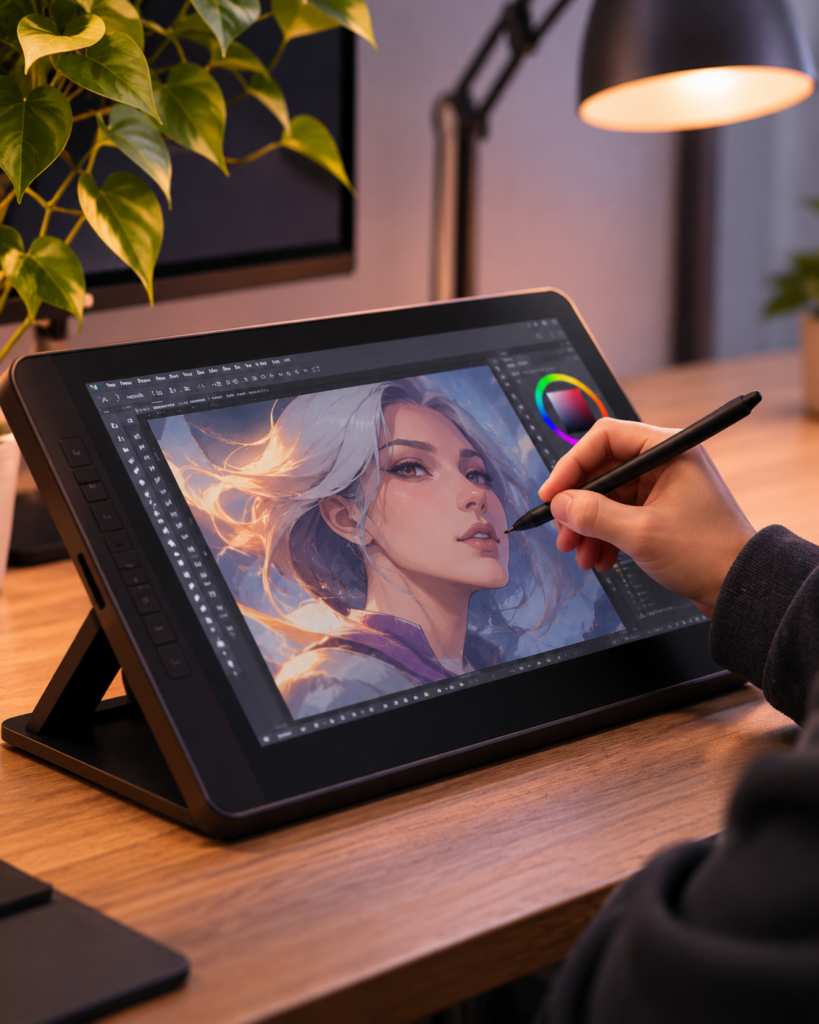
    Digital artist using a drawing tablet with screen to create a digital portrait with a stylus.

    What Is a Screenless Tablet?


    A screenless tablet, sometimes called a pen tablet or graphics tablet, works differently.

    Instead of drawing directly on a screen, you use a stylus on a flat, pressure-sensitive surface while watching your computer monitor.
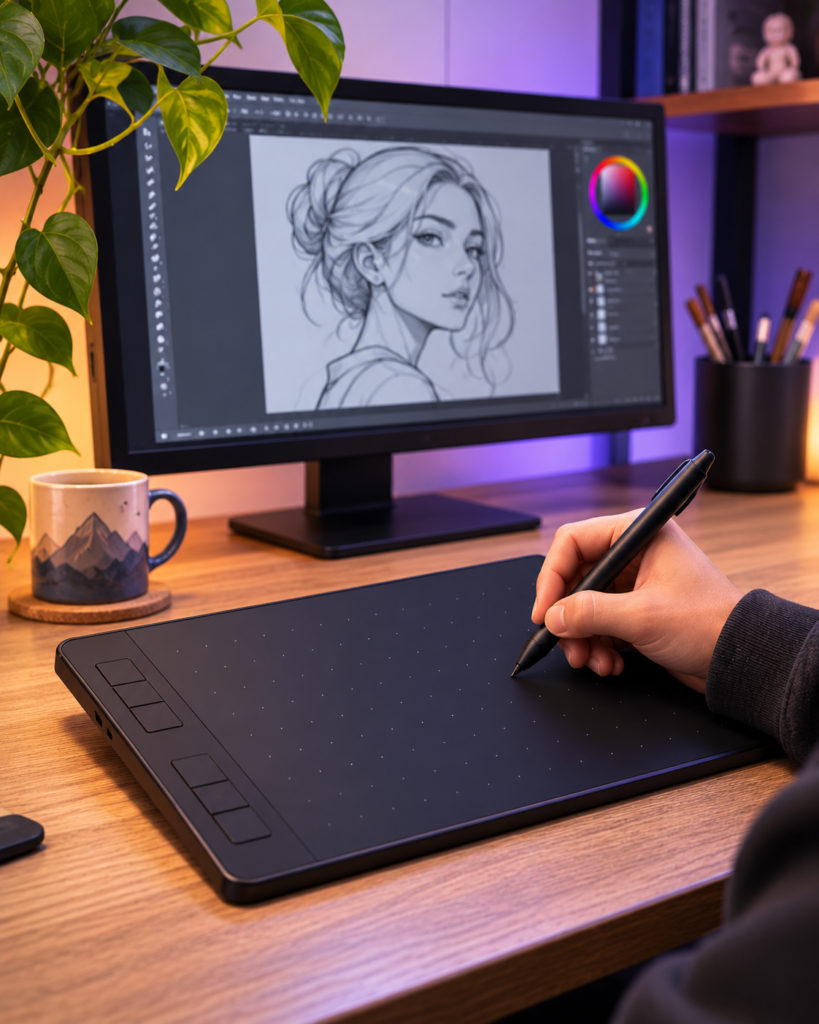
    At first, this can feel strange because your hand and eyes are focused on different places. However, many artists become comfortable with this arrangement after some practice.

    Screenless tablets are especially popular among beginners, students, and creators looking for reliable equipment without spending too much money.

    What About 3D Modelling and Sculpting?


    If you’re interested in 3D art, you might be wondering whether a screen tablet is necessary. The answer is no!

    Both tablet types can work well for digital sculpting, texture painting, and other creative tasks in software such as Blender or ZBrush.

    For example, pressure-sensitive pen input can make sculpting brushes feel more natural, allowing you to control brush strength through your hand movements.

    However, not every 3D task benefits equally from a drawing tablet. For traditional polygon modelling, keyboard and mouse controls may still be more convenient.

    If your main focus is sculpting or hand-painted textures, either tablet type can be useful. A screenless tablet may be all you need, especially when you’re starting out.

    Find your bundle


    Not sure what gear you need? Explore Digital Den’s curated equipment bundles, tailored to different creative needs, skill levels, and budgets. Spend less time searching and more time creating!
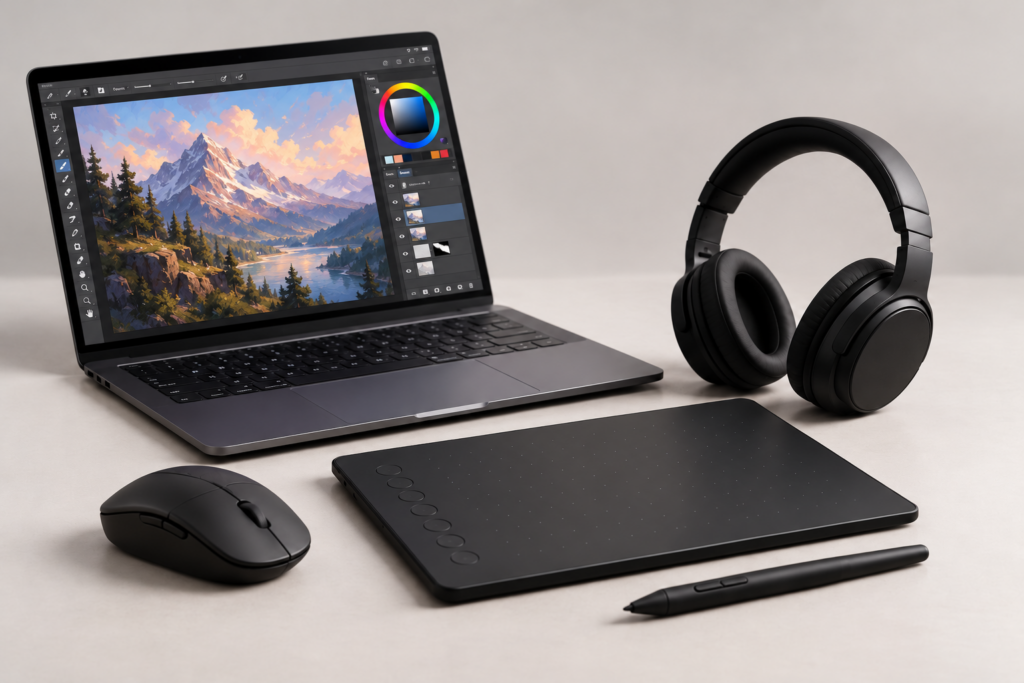
    Budget bundle
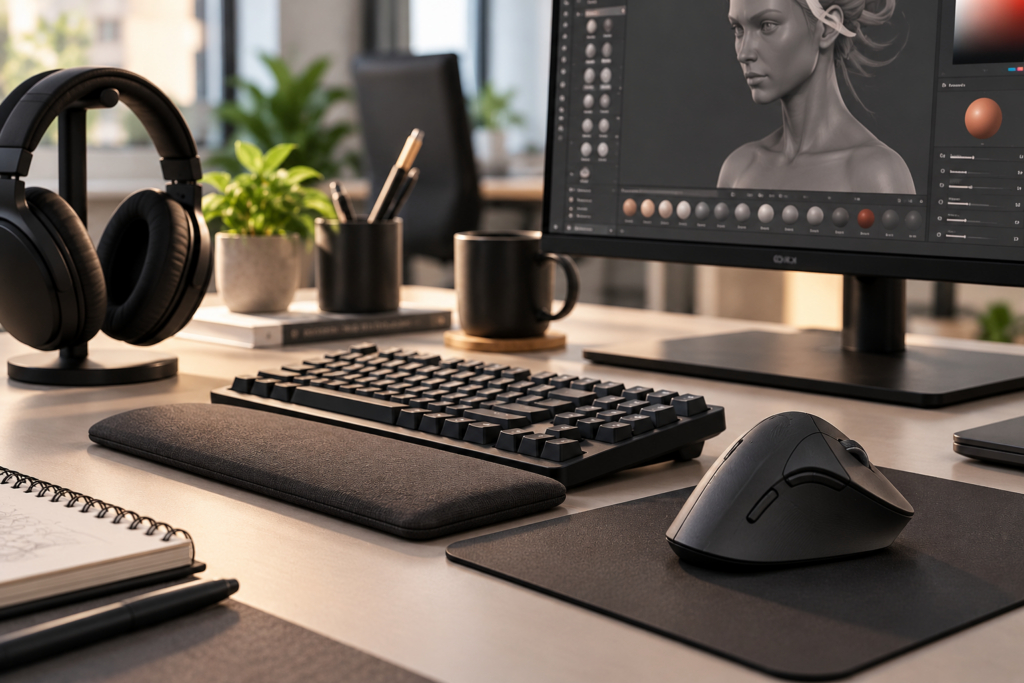
    Ergonomic bundle
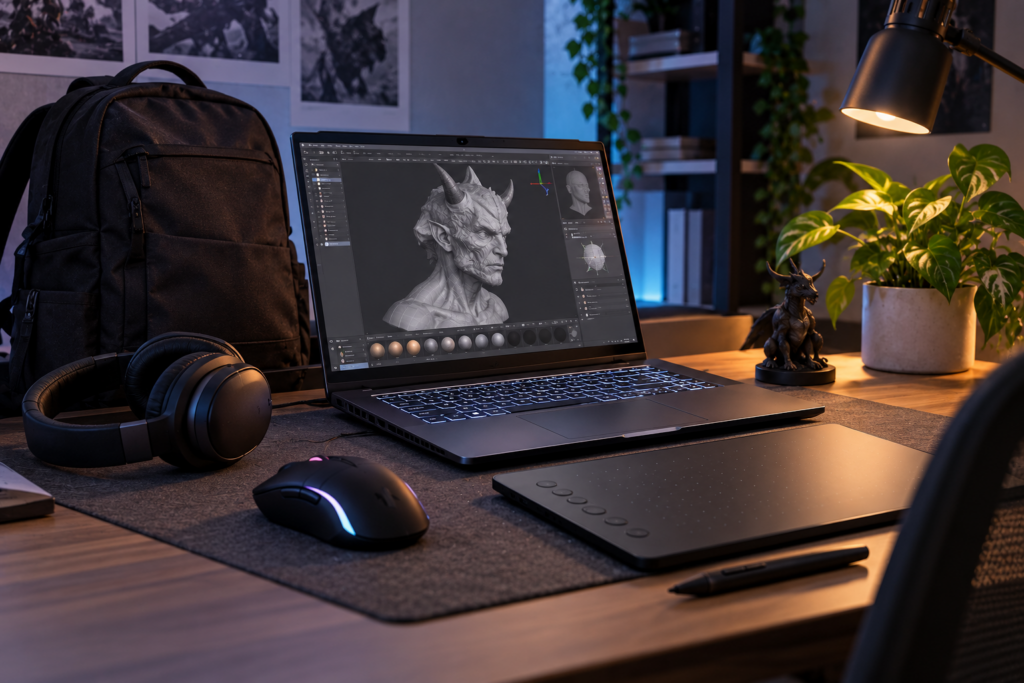
    3D student bundle

    What Should You Look for Before Buying?


    Whether you choose a screen tablet or a screenless model, there are several important features worth checking.

    Pen pressure sensitivity: Pressure sensitivity allows the tablet to recognise how firmly you’re pressing the pen. This is particularly useful for brush control, shading, and sculpting.

    Active drawing area: A larger drawing area provides more room for hand movements, while smaller tablets are easier to carry. Bigger isn’t always better, especially if your desk is limited.

    Driver compatibility: Make sure the tablet supports your operating system and the creative software you plan to use.

    Shortcut buttons: Programmable buttons can speed up your workflow by providing quick access to frequently used tools.

    Ergonomics: If you spend hours drawing or sculpting, comfort matters. Consider the drawing angle, pen grip, desk position, and whether you’ll need a stand.

    For screen tablets, you should also compare display resolution, colour accuracy, and brightness.

    Which Drawing Tablet Should You Choose?


    The best option depends on your experience, budget, and creative goals.

    If you’re a student or beginner working with a limited budget, a screenless tablet is often the smarter starting point. It provides the essential features needed to develop your digital art skills without a major investment.

    If you’re already comfortable with digital art and want a more direct drawing experience, a screen tablet may be a worthwhile upgrade.

    And if you’re mainly interested in 3D modelling, don’t assume that spending more money on a screen will automatically improve your workflow.

    Consider which tasks you actually perform and whether a screen would make those tasks easier.

    Final Thoughts:


    There’s no single best drawing tablet for everyone.

    Screen tablets offer a direct, intuitive drawing experience, while screenless tablets provide an affordable and practical alternative.

    Most importantly, a more expensive drawing tablet won’t automatically make you a better artist. Developing your skills, practising regularly, and choosing equipment suited to your workflow will make a much bigger difference.
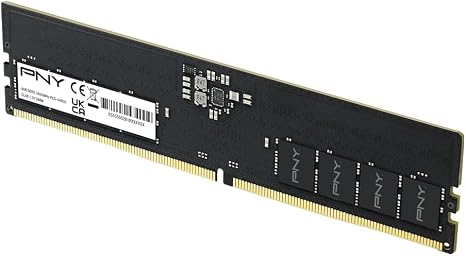
    PNY DDR5 8GB (1x8GB) 5600MHz CL46 Performance Desktop Memory
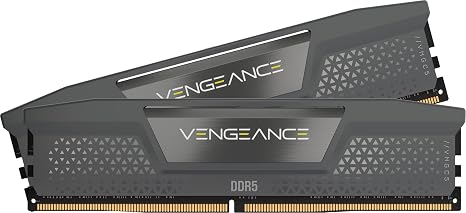
    CORSAIR Vengeance DDR5 16GB (2 x 8GB) Up to 5200MHz AMD Intel RAM
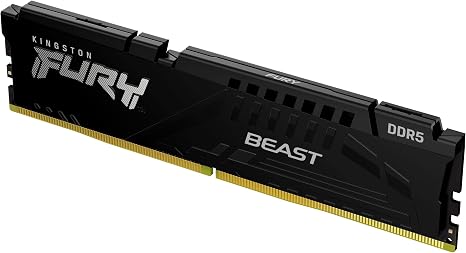
    Kingston FURY Beast 8GB 6000MT/s DDR5 CL36 Desktop Memory | AMD EXPO |Single Module | KF560C36BBE-8
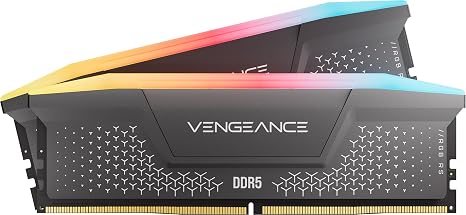
    Corsair Vengeance RGB RS DDR5 16GB (2 x 8GB) Up to 6000MHz AMD Intel RAM
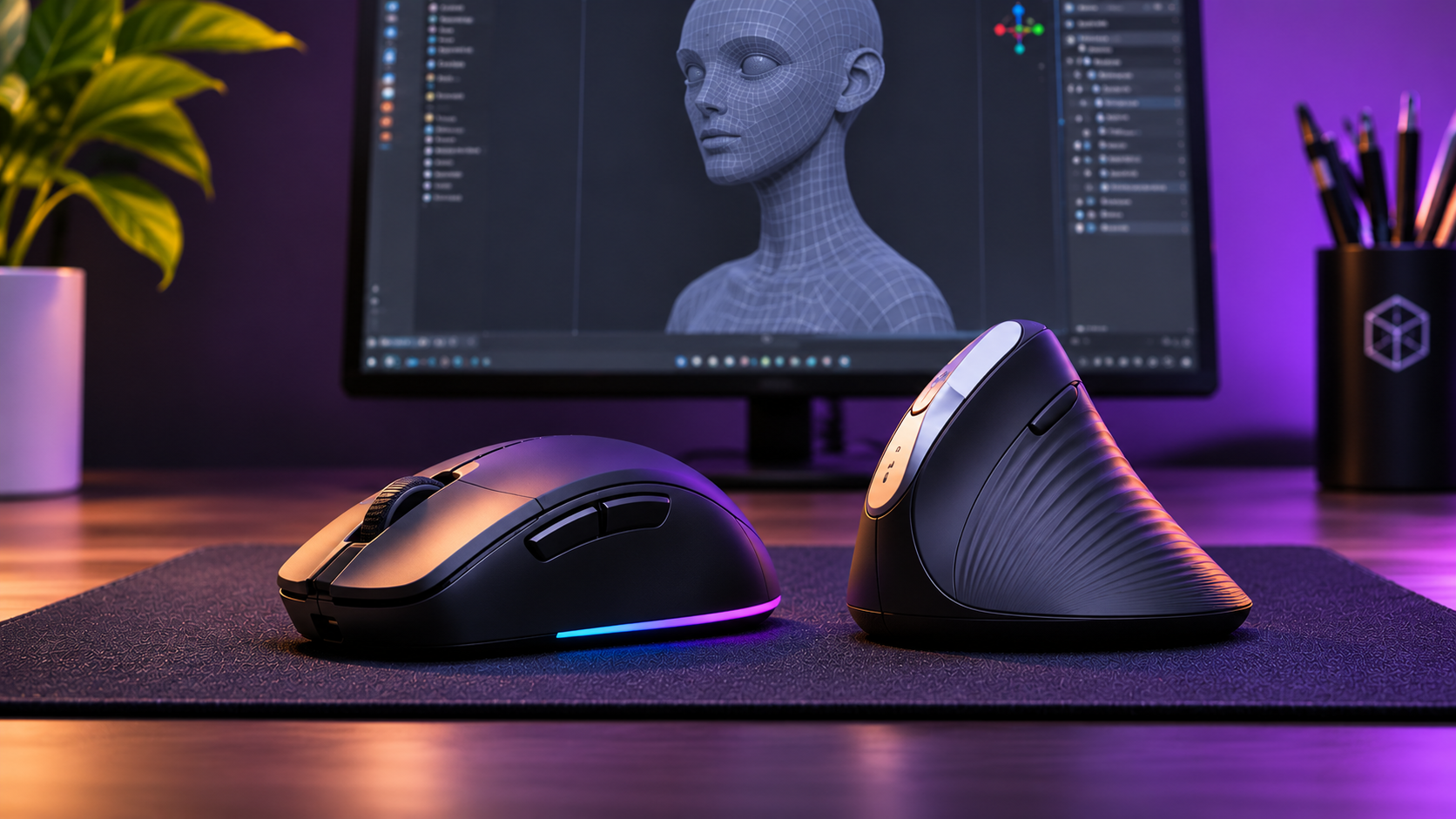
  • Ergonomic Mouse vs. Traditional: Best Choice for Artists

    Ergonomic Mouse vs. Traditional: Best Choice for Artists

    Choosing the Right Mouse for 3D Modelling


    An ergonomic mouse can make a big difference when spending hours working in 3D modelling software like Blender or Maya. While most digital artists focus on having a powerful computer, a good monitor, and enough RAM, one important piece of equipment often gets overlooked: the mouse.

    Whether you’re sculpting characters, building detailed environments, or adjusting individual vertices, your mouse is one of the tools you use most throughout the day.

    Choosing the right design could help improve your comfort, reduce hand fatigue, and make long creative sessions more enjoyable. However, specialised designs aren’t necessarily the best choice for everyone, especially when precision and quick movements are important.

    So, is an ergonomic mouse actually better for 3D modelling, or does a traditional model offer more control and flexibility?

    Traditional Mouse vs. Ergonomic Mouse: Understanding the Differences


    Traditional mice are the most common choice among computer users. They come in countless shapes, sizes, and price ranges, making them accessible to beginners and professionals alike.

    Unlike specially designed alternatives, which often feature contoured bodies, conventional mice typically follow a familiar, relatively flat shape.

    One of their biggest advantages is familiarity. Most people have used a traditional mouse for years, meaning there’s almost no learning curve when switching between different models.

    For 3D artists, these devices offer several benefits. They’re often lightweight, provide accurate tracking, and work well with the precise movements required for modelling.

    Many gaming mice also include programmable buttons, which can be useful for assigning frequently used shortcuts in Blender or Maya.

    However, traditional mice aren’t perfect. Some designs may encourage uncomfortable hand or wrist positions during long working sessions, particularly if the device doesn’t fit your hand properly.

    This is where more specialised alternatives might offer an advantage. Their shapes may provide a more comfortable hand position during extended use.

    Still, a conventional design isn’t inherently bad for your comfort. A well-fitting model can be an excellent choice, especially when combined with a comfortable desk setup and regular breaks.

    Find your bundle


    Not sure what gear you need? Explore Digital Den’s curated equipment bundles, tailored to different creative needs, skill levels, and budgets. Spend less time searching and more time creating!

    Budget bundle

    Ergonomic bundle

    3D student bundle

    Ergonomic Mouse Benefits for 3D Modelling


    An ergonomic mouse is designed to support a more relaxed hand position, often featuring thumb rests, angled surfaces, or vertical shapes. These designs may reduce wrist and forearm strain during long 3D modelling sessions, although comfort varies between users.

    However, some models can take time to get used to and may have less accessible buttons. This is especially important in Blender, where the middle mouse button is essential for navigating the 3D viewport.

    Before buying, consider the shape, button placement, and how well the mouse fits your workflow. Ultimately, the best choice depends on your comfort and personal preferences.

    An Ergonomic Mouse Is Only Part of a Comfortable Desk Setup


    Even the most comfortable mouse won’t fix every issue caused by spending hours at a computer.

    Your chair, desk height, keyboard position, and working habits all contribute to your overall comfort.

    When working on detailed 3D projects, try keeping your mouse close to your keyboard to avoid unnecessary reaching. Make sure your shoulders remain relaxed, and take regular breaks throughout long modelling sessions.

    It’s also worth remembering that comfortable equipment works best as part of a properly arranged workstation rather than as a standalone solution.

    If you’re experiencing persistent wrist or hand pain, don’t assume buying a new mouse will solve it. Consider professional advice, particularly if symptoms continue.

    What to Look for When Buying an (ergonomic) Mouse for 3D Art


    Before choosing your next mouse, consider how you actually use your computer. Whether you’re interested in an ergonomic mouse or a traditional design, several features can make a difference to your workflow.

    1. Size and grip

    Your mouse should fit your hand comfortably. Whether you prefer a palm, claw, or fingertip grip, avoid designs that force your fingers into awkward positions.

    A comfortable grip can be especially appealing during long modelling sessions, but the shape needs to suit your hand.

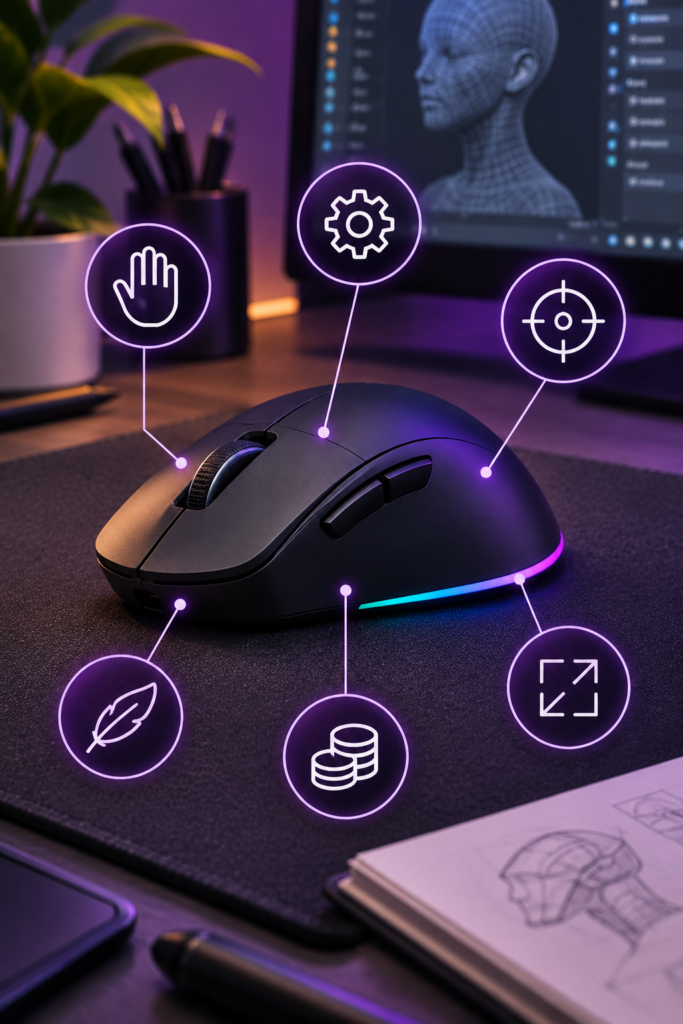
    Black ergonomic mouse for 3D artists with programmable buttons, precision tracking, and comfort features, displayed in a digital art workspace.

    2. Programmable buttons

    Additional buttons can help streamline your workflow. Some models include programmable controls that allow you to assign frequently used modelling shortcuts.

    Just make sure your chosen device has an accessible middle button for viewport navigation in Blender or Maya.

    3. Sensor quality

    Reliable tracking is essential when selecting objects or performing precise adjustments.

    However, extremely high DPI isn’t necessarily better for 3D modelling. Consistent tracking matters more than impressive specifications.

    4. Weight

    A lightweight mouse may require less effort to move repeatedly. However, some artists prefer heavier models because they feel more stable.

    There isn’t one perfect weight for everyone, so choose what feels comfortable during regular use.

    5. Your budget

    An expensive ergonomic mouse isn’t automatically a better investment.

    An affordable option with a comfortable shape and reliable performance can serve you just as well as a premium alternative, especially if you’re just starting your 3D art journey.

    Final Thoughts: Is an Ergonomic Mouse Worth It for 3D Artists?


    For beginners, a traditional mouse is often a practical starting point. Conventional models are affordable, familiar, and provide everything needed to begin learning 3D modelling.

    However, if you regularly spend long hours working in Blender or Maya and find your current device uncomfortable, switching to an ergonomic mouse could be worthwhile.

    A more supportive shape may offer a comfortable grip and hand position, but comfort varies between users. What works perfectly for one artist might feel completely unnatural to another.

    Whenever possible, try different designs before buying. Pay attention to the shape, button placement, weight, and how easily you can navigate your 3D software.

    Ultimately, choosing between an ergonomic mouse and a traditional model comes down to finding the right balance between comfort, precision, and functionality for your creative workflow.

    PNY DDR5 8GB (1x8GB) 5600MHz CL46 Performance Desktop Memory

    CORSAIR Vengeance DDR5 16GB (2 x 8GB) Up to 5200MHz AMD Intel RAM

    Kingston FURY Beast 8GB 6000MT/s DDR5 CL36 Desktop Memory | AMD EXPO |Single Module | KF560C36BBE-8

    Corsair Vengeance RGB RS DDR5 16GB (2 x 8GB) Up to 6000MHz AMD Intel RAM
  • Laptop for 3D Modelling: Is a Gaming Laptop Good Enough?

    Laptop for 3D Modelling: Is a Gaming Laptop Good Enough?

    Choosing the right laptop for professional 3D modelling…


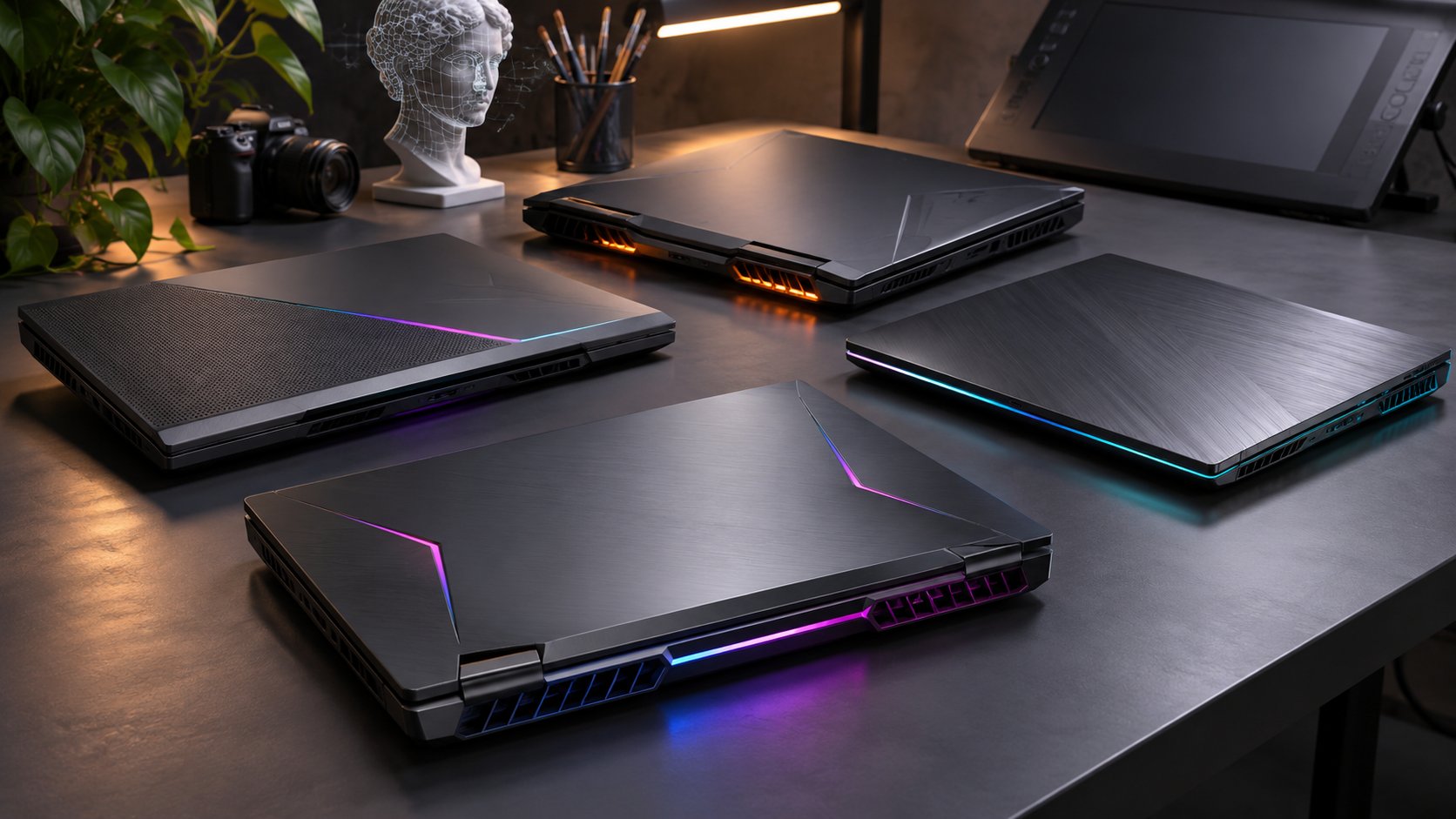
    Finding the right laptop for 3D modelling can be challenging, especially for beginners entering the world of 3D art, animation, or game development. With so many gaming laptops and professional workstations available, knowing which specifications actually matter can save you a lot of money.

    But do you really need an expensive professional workstation to create detailed 3D models and high-quality renders?

    Not necessarily! A gaming laptop for 3D modelling can deliver excellent performance without the high price of a specialised workstation.

    Gaming laptops often feature powerful graphics cards, fast processors, and plenty of RAM. These are the same components needed to run demanding 3D software such as Blender, Autodesk Maya, and Unreal Engine.

    The key is finding a laptop that balances performance, cooling, and price.

    Gaming laptop for 3D modelling: Performance and portability


    A gaming laptop for 3D modelling can be an excellent choice because gaming and 3D creation share similar hardware requirements.

    Modern games rely on powerful GPUs, CPUs, and memory to display detailed environments. These components are also important when modelling complex objects, working with high-resolution textures, and rendering 3D scenes.

    For example, a dedicated graphics card can improve viewport performance and significantly reduce rendering times in compatible GPU rendering software.

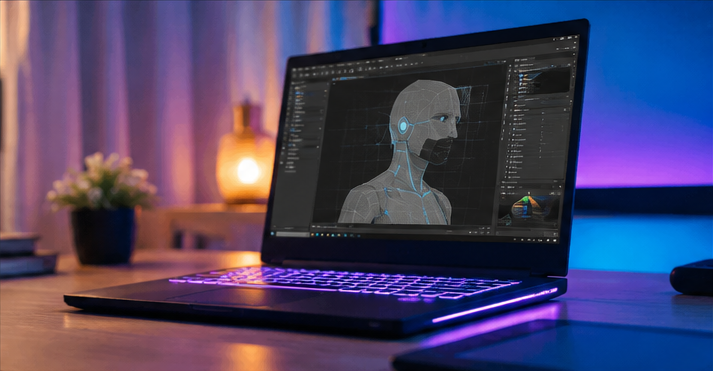
    Gaming laptop for 3D modelling displaying a detailed 3D character model in Blender, with an RGB keyboard on a desk.

    Another advantage is portability. Unlike a desktop workstation, a laptop for 3D modelling allows you to work at university, in a studio, or while travelling.

    However, not all gaming laptops perform equally. Cooling systems and GPU power limits can make a significant difference, even between laptops with similar specifications.

    What Specifications Should a Laptop for 3D Modelling Have?


    When choosing a laptop for 3D modelling, understanding the main hardware components will help you avoid spending money on unnecessary upgrades.

    The graphics card is particularly important for GPU rendering and displaying complex 3D scenes.

    A dedicated NVIDIA GeForce RTX GPU is a strong option for Blender and other applications that support GPU acceleration.

    For more demanding 3D projects, 8 GB of VRAM is a useful starting point, although complex scenes and high-resolution textures may require more.


    The CPU handles modelling operations, certain simulations, and CPU-based rendering.

    A modern Intel Core Ultra or AMD Ryzen processor is a good starting point for a laptop for 3D modelling.

    Look for strong single-core performance for interactive modelling and good multi-core performance for tasks that benefit from additional processing cores.


    AM is essential when working with large 3D scenes and running multiple applications.

    • 16 GB: Suitable for learning Blender and creating smaller 3D projects.
    • 32 GB: Recommended for more serious 3D modelling, multitasking, and larger projects.
    • 64 GB or more: Useful for complex scenes, demanding simulations, and specialised professional work.

    For most aspiring 3D artists, 32 GB provides a good balance between performance and affordability.


    A fast SSD makes loading large project files, textures, and software much smoother.

    For a laptop for 3D modelling, a 1 TB NVMe SSD is a practical starting point. Large asset libraries, animations, and rendered files can quickly consume storage space.


    Display Quality for 3D Modelling


    While processing power is important, the display also deserves attention.

    A good laptop for 3D modelling should have sufficient screen resolution, brightness, and colour accuracy.

    A Full HD display can work for beginners, but a higher-resolution screen provides more workspace for complex software interfaces.

    For artists working with textures and materials, a display with close to 100% sRGB coverage is a sensible choice.

    An external monitor can also improve comfort and productivity when working on detailed 3D projects for extended periods.

    Find your bundle


    Not sure what gear you need? Explore Digital Den’s curated equipment bundles, tailored to different creative needs, skill levels, and budgets. Spend less time searching and more time creating!

    Budget bundle

    Ergonomic bundle

    3D student bundle

    Disadvantages of Using a Gaming Laptop for 3D Modelling


    Although a gaming laptop for 3D modelling offers excellent flexibility, there are some limitations.

    Heat and noise: Rendering complex scenes can push the CPU and GPU to their limits. Without adequate cooling, a laptop may become noisy or reduce performance to control temperatures.

    Battery life: Demanding 3D applications consume significant power. Most gaming laptops also perform best when connected to a charger.

    Limited upgrades: Unlike desktop workstations, laptops usually offer fewer upgrade options. In many models, the CPU and GPU cannot be replaced.

    Price-to-performance: A desktop PC can often deliver better sustained rendering performance for the same budget.

    For artists who render highly demanding projects every day and do not need portability, a desktop workstation may be a better investment.

    Final Thoughts: Choosing the Best Laptop for 3D Modelling


    A laptop for 3D modelling does not need to be an expensive professional workstation to produce impressive results.

    For students, beginner 3D artists, freelancers, and even some professionals, a well-equipped gaming laptop can handle modelling, sculpting, texturing, animation, and rendering.

    At Digital Den, we recommend choosing a laptop based on your actual workflow rather than simply purchasing the most expensive hardware available.

    Prioritise a capable GPU, sufficient VRAM, 32 GB of RAM where affordable, good cooling, and a suitable display.

    Remember, the best laptop for 3D modelling is not necessarily the most powerful one. It is the laptop that provides the performance you need without making you pay for features you will never use.

    Your skills create the artwork. Your laptop simply helps bring it to life.

    PNY DDR5 8GB (1x8GB) 5600MHz CL46 Performance Desktop Memory

    CORSAIR Vengeance DDR5 16GB (2 x 8GB) Up to 5200MHz AMD Intel RAM

    Kingston FURY Beast 8GB 6000MT/s DDR5 CL36 Desktop Memory | AMD EXPO |Single Module | KF560C36BBE-8

    Corsair Vengeance RGB RS DDR5 16GB (2 x 8GB) Up to 6000MHz AMD Intel RAM
  • How Much RAM Do I Need for Digital Art and 3D Modelling?

    How Much RAM Do I Need for Digital Art and 3D Modelling?

    How Much RAM Do I Need? A Beginner’s Guide to Digital Art and 3D Modelling

    Planning to buy your first laptop or PC for digital art? You’ve probably seen computers offering 8GB, 16GB, 32GB or even 64GB of RAM. But how much RAM do I need for digital art and 3D modelling?

    With so many specifications to compare, choosing the right computer can feel overwhelming. The good news? You don’t need the most expensive setup to start creating.

    Let’s break down how much RAM you need for digital art and 3D modelling.


    What Is RAM and Why Does It Matter?

    RAM (Random Access Memory) is your computer’s short-term memory. It temporarily stores information that applications need while running. But how much RAM do I need for digital art and 3D modelling?

    Think of RAM as your digital workspace. The more RAM you have, the more room your computer has to handle large projects and run multiple applications simultaneously.

    For digital artists, having enough RAM is especially important when working with high-resolution illustrations, detailed 3D models and complex textures. The right amount depends on the type and complexity of your creative projects.


    How Much RAM Do I Really Need?

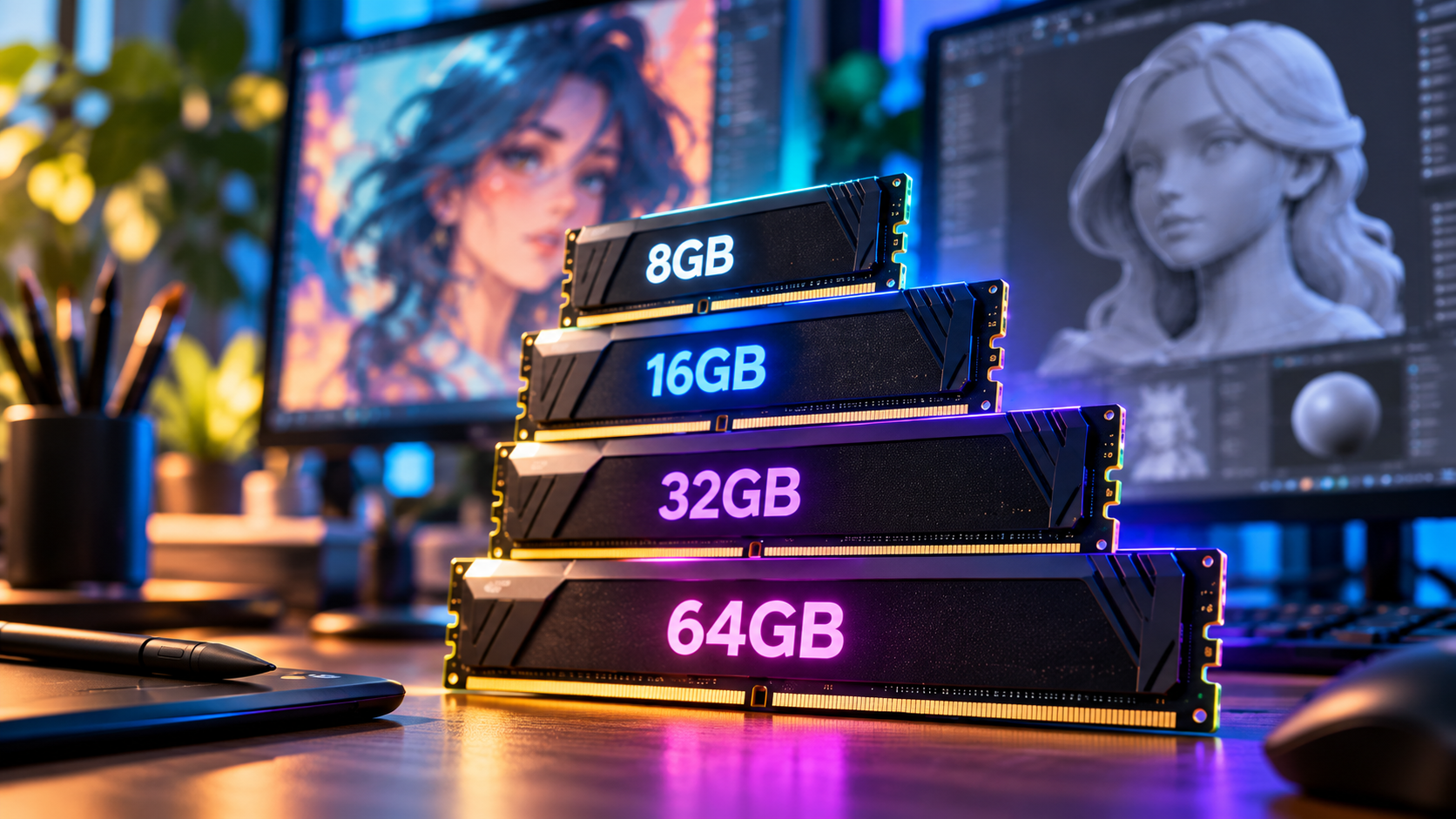
    8GB RAM – Basic Creative Work

    8GB can handle simple digital illustrations and lightweight drawing applications. However, larger projects, multiple layers and multitasking may cause slowdowns.

    16GB RAM – A Great Starting Point

    For most beginner digital artists, 16GB offers a good balance between price and performance.

    It’s suitable for digital painting, photo editing and basic 3D modelling in applications like Blender.

    32GB RAM – More Room to Create

    If you’re working with larger 3D scenes, high-resolution textures or multiple creative applications simultaneously, 32GB provides additional flexibility.

    It’s particularly useful when switching between Blender, Photoshop and other demanding programs.

    64GB+ RAM – Professional Workflows

    Higher memory capacities are useful for complex simulations, large 3D environments and demanding professional projects.

    However, most beginners won’t need this much memory.


    Is More RAM Always Better?

    Not necessarily!

    If you’re wondering how much RAM do I need for digital art and 3D modelling, remember that RAM isn’t the only factor affecting performance. Your computer’s CPU, GPU and storage also play important roles.

    For example, a powerful graphics card can be more beneficial than additional RAM for certain 3D rendering tasks. Adding more RAM won’t necessarily improve performance if your computer already has enough for your projects.

    Before buying or upgrading, check your creative software’s recommended system requirements to find the right balance between performance and budget.


    Final Thoughts: Choose What You Actually Need

    For most beginners, 16GB RAM is a sensible starting point, while 32GB offers more flexibility as projects become demanding.

    PNY DDR5 8GB (1x8GB) 5600MHz CL46 Performance Desktop Memory

    CORSAIR Vengeance DDR5 16GB (2 x 8GB) Up to 5200MHz AMD Intel RAM

    Kingston FURY Beast 8GB 6000MT/s DDR5 CL36 Desktop Memory | AMD EXPO |Single Module | KF560C36BBE-8

    Corsair Vengeance RGB RS DDR5 16GB (2 x 8GB) Up to 6000MHz AMD Intel RAM